
Shopify Test Orders: How to Place One and Spot a Fake
Shopify test orders explained: place one with the Test payment gateway or Shopify Payments test mode, delete it afterward, and tell it from a fake order.
An unfamiliar order appears in your admin, and nobody remembers placing it. Before you call it fraud, check whether someone was testing checkout. Shopify test orders let you check checkout, order processing, inventory, shipping, notifications, and taxes without taking a real payment. Shopify Payments test mode and the Test payment gateway provide simulated checkout; a real-card purchase followed by a refund can incur fees. The difference matters after checkout, too. A Shopify test order stays out of Shopify's payouts and reports, but it can still change inventory, send messages, and reach connected apps.
Table of Contents
- Choosing a Shopify Test Order Method
- How to Place a Shopify Test Order Step by Step
- Telling a Shopify Test Order From a Fake Order
- What a Shopify Test Order Triggers and How to Delete It
- Where Securify fits
- Shopify Test Orders FAQ
Choosing a Shopify Test Order Method
Choose your method based on what you need to prove. A simulated transaction checks the store's workflow without moving money. A real-card transaction checks the live payment provider, but creates a real financial record.
Test order methods compared
| Method | Charges a real card? | In payouts or reports? | Can you delete it? |
|---|---|---|---|
| Test payment gateway | No | No | Yes, after cancellation or archiving, if classified as a test |
| Shopify Payments test mode | No | No | Yes, after cancellation or archiving, if classified as a test |
| Real card, refunded and canceled | Yes, then refunded; processing fees may remain | Yes, with cancellation and refund records | Archive only |
Match the method to the check
Shopify Payments test mode makes sense when that's already your payment provider and setup is complete. It simulates payment processing without capturing real payments. Real credit-card payments won't work while it's enabled, although supported wallet checkouts can still complete as uncharged tests.
The Test payment gateway is useful when you want explicit approved, declined, and gateway-error outcomes. You must deactivate the active card provider first, so it's not something to switch on casually while shoppers are checking out.
A real-card purchase is appropriate when you specifically need to confirm that the live provider accepts and processes payment. Refund it and cancel the order afterward, but don't expect cancellation to erase processing costs or reporting history. Gateway testing requires a paid Shopify plan.
Practical rule: Use simulated payments for workflow testing. Use a real card only when the live payment connection itself is what you're testing.
For a live store, prepare the cart and acceptance checklist before changing payment settings. Keep the interruption short, and assign someone to confirm that the live provider is restored.
How to Place a Shopify Test Order Step by Step
Treat the test as a customer journey, not an admin exercise. Start at the storefront, calculate shipping and tax, complete payment, and inspect what happens afterward.
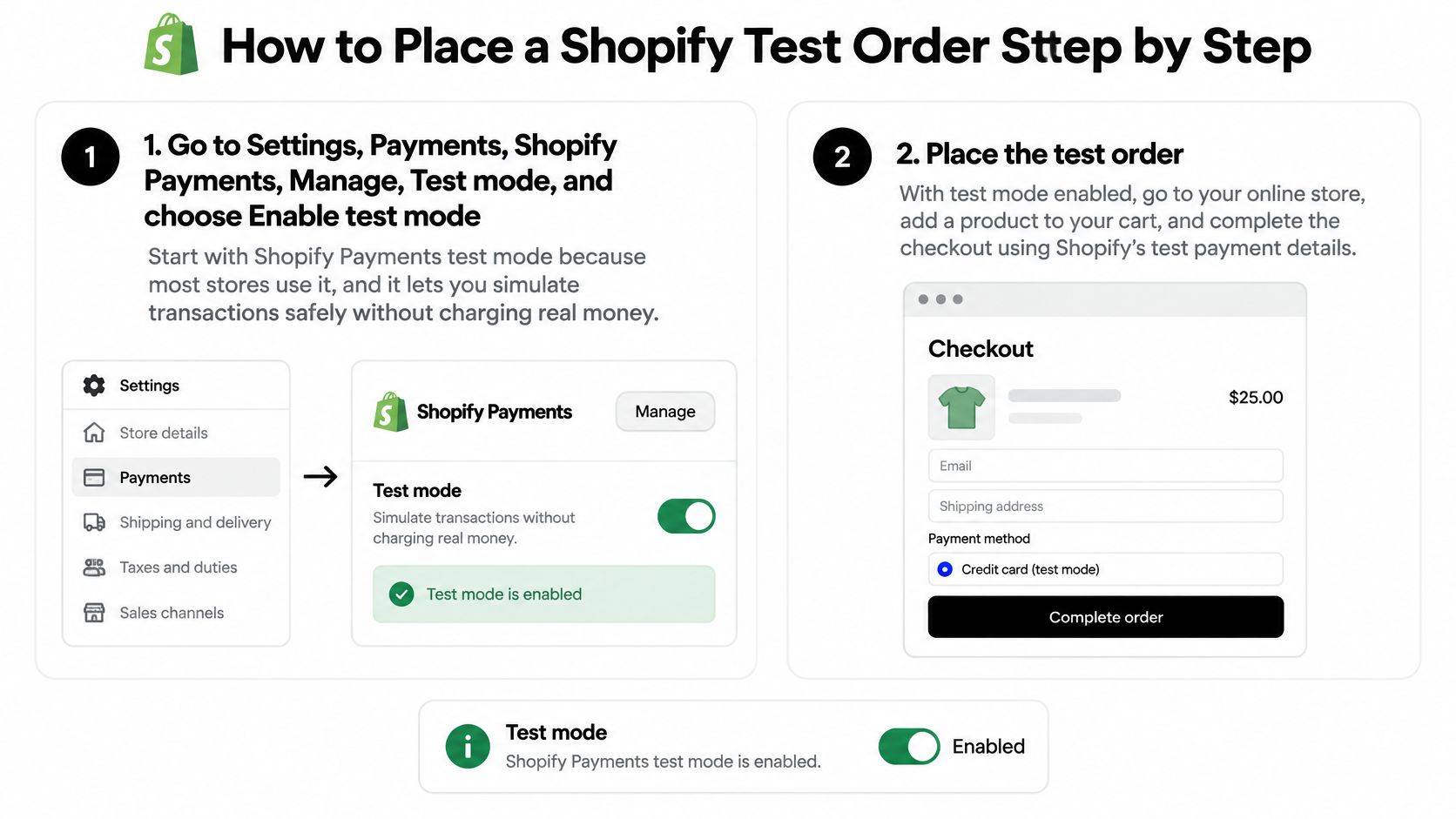
Shopify Payments test mode
-
Enable the setting. After completing Shopify Payments setup, open Settings > Payments > Shopify Payments > Manage. Find Test mode, select Enable test mode, and save.
-
Shop like a customer. Open your storefront in a private browser window and add a product. Use the shipping destination, discount, and delivery option you need to validate.
-
Use provider-specific credentials. Copy the appropriate payment details from Shopify's Shopify Payments test-mode guide. Don't use genuine card information in the sandbox or assume credentials from another provider will work.
-
Inspect the result. Open the resulting order in Orders, confirm its test-mode identification, and compare the payment result with your expected outcome. Disable test mode immediately after the checks are finished.
Shopify cautions against enabling test mode on a production store. If you need to validate a live store's configuration, schedule a controlled maintenance window rather than leaving test mode running while customers browse.
The Test payment gateway, formerly Bogus Gateway
-
Deactivate your active card provider. For Shopify Payments, open Manage > Manage payment methods > Switch to a third-party provider. For another provider, open Manage > Deactivate, checking the confirmation carefully.
-
Activate the test provider. Under Payments, choose See all other providers > Test payment gateway > Activate, then save. Don't leave a live provider active alongside your sandbox setup.
-
Exercise different payment outcomes. According to Shopify's test-order procedure, card number 1 simulates approval, 2 simulates a decline, and 3 simulates a gateway failure; use a three-digit CVV such as 111. Enter Test payment gateway as the cardholder name, use a future expiry, and follow the gateway's checkout requirements.
-
Verify the payment method. Find the successful order in admin and check the gateway label. A checkout error alone isn't proof that your store handled failure correctly, so also check the customer-facing message and whether an unintended order was created.
This gateway isn't for POS or subscription testing. Customers can't make normal card payments through it, so restore your live provider as soon as testing is complete.
Check the order before you finish
- Payment and capture: Verify the payment state, not just the presence of an order. For manual capture, test cancellation and confirm the authorization is released.
- Fulfillment: Isolate fulfillment services and automatic fulfillment apps before testing. Cancel the test fulfillment before reactivating those services.
- Refunds: Exercise full and partial refunds on suitable test orders and inspect the resulting records.
- Shipping and taxes: Compare the selected rate, destination, and tax calculation with the expected result.
- Notifications: Use a controlled inbox when you need to inspect actual message delivery. An address ending in
@example.comis suitable as dummy data, not as an inbox you can read.
Finish by checking the live payment settings again. A successful sandbox checkout doesn't prove that normal customers can now pay.
Telling a Shopify Test Order From a Fake Order
A planned test is authorized QA activity your team can confirm: an order placed by a named staff member on a known date, carrying the Test payment gateway label while someone worked on checkout. A fake order can look similar in the order list, but nobody staged it and nobody can account for it. A caller saying "it was just a test" settles nothing until the record matches something your team ran.
Start with these admin checks:
- Ask your team. Match the order's time, products, customer details, and purpose to a known test, and check with whoever touched checkout or theme settings that day.
- Compare the gateway label against your Payments settings. The label on the order should match a gateway or test mode you have configured, not a provider you never enabled.
- Inspect payment details. Look for the test-mode banner or Test payment gateway label rather than relying on the customer name, which anyone can type.
- Review the timeline and fraud indicators. Repeated card attempts or an address nobody recognizes belong to an investigation, even when the order itself looks harmless.
Shopify's test-order documentation explains how test payments are flagged, and Shopify's order cancellation guide says payments made in test mode can only be deleted if they are test orders. Don't assume those records are deletable.
Test, fake and real orders compared
| Order type | Who created it | Payment status and gateway | What to do |
|---|---|---|---|
| Test order | You or staff conducting authorized testing | Test gateway or test-mode identification; excluded from payouts | Clean up, then delete if eligible |
| Fake order | A bot, card tester, or buyer acting without genuine purchase intent | Can use a real gateway and appear paid, pending, voided, or failed | Hold fulfillment and investigate |
| Real order | A genuine customer | Real payment method; paid or authorized when appropriate | Fulfill after normal checks |
A paid status doesn't prove a buyer is legitimate. A pending status doesn't prove an order is fake.
An unfamiliar order marked Pending or Manual deserves investigation, especially when a stranger insists it was only a test. Use how Shopify Fraud Analysis rates an order alongside the playbook for how to stop fake orders on Shopify.
If the record exists only in an email or alert, investigate a possible fake Shopify order notification. If unknown orders arrive with a traffic spike, use the Shopify traffic checker to examine the visits behind them.
What a Shopify Test Order Triggers and How to Delete It
No real payment doesn't mean no operational consequences. Shopify's test-order guide identifies inventory, fulfillment, shipping, taxes, and notifications as testing targets, and warns merchants to cancel test fulfillment before reactivating fulfillment services.
What still happens downstream
Reports and payouts. Shopify excludes simulated test transactions from its figures.
Apps and Flow. Treat the order as actionable until you've verified each app's test-order filter. A Flow workflow on the "Order created" trigger doesn't check intent: it will still post to a Slack channel, email a fulfillment partner, or apply a customer tag. Warehouse exports, loyalty points awarded on purchase, and helpdesk tickets opened per order behave the same way, and each leaves a record outside the Shopify admin. If you use order management software for e-commerce, include its import queue and fulfillment status in the acceptance checklist.
For risk-driven workflows, Shopify's fraud-analysis guide specifies shopify.test.high@shopify.com, shopify.test.medium@shopify.com, and shopify.test.low@shopify.com for simulated risk, with an order total greater than zero; Shopify Payments must be in test mode, or another gateway requires the Grow plan or higher. Those simulations don't receive real fraud recommendations. Use them to check how your process handles Shopify high-risk orders, not to judge actual fraud-detection accuracy.
Inventory. Check the product's available quantity before and after checkout. A test order for two units drops available stock by two, and canceling with the restock option checked returns it. Review that option during cancellation and confirm the resulting quantity rather than assuming deletion restores stock.
Notifications. Customer and staff messages can fire, along with app-generated messages. Dummy email addresses prevent you from using a customer's details, but a controlled inbox is necessary for delivery testing.
Cancel, archive, delete. Preserve the order ID and test result before removing records; connected systems keep their own copies of everything the order triggered.
Clean up without deleting the wrong order
- Stop physical work. Cancel test fulfillment and void unused shipping labels where applicable.
- Open the order's More actions menu and cancel it when cancellation is appropriate. Review restocking and notification choices.
- Archive if needed. Cancellation or archiving must precede deletion; you don't need to perform both just to satisfy that prerequisite.
- Use the available Delete action only after confirming eligibility and the confirmation text. Eligible categories include qualifying test, manual-payment, draft-related, and API-imported orders; a real-card purchase stays outside them regardless of test intent, and gift-card orders require separate handling. Check connected systems separately afterward.
Cleanup rule: Test orders are financially simulated but operationally real. Finish the operational cleanup before removing the admin record.
Where Securify fits
A deleted test order can still leave residue in Flow logs, app events, inventory counts, and notification history, so scope matters after the admin record is gone. Securify belongs on the traffic side of that line: its Shopify integration screens visitors in real time as they browse, lets real shoppers pass through, and flags bots, VPN or proxy use, and high-risk-country traffic before it becomes an order, a review task, or a chargeback.
Securify does nothing to test orders themselves. For live-gateway orders nobody scheduled, check visitor logs and customer tags before treating the buyer's story as reliable. The free plan includes country and IP blocking, 500 blocked visitors, fraud-order alerts with hold and cancel, up to 5 high-risk orders per 30 days, content protection, and visitor logs of the last 1,000 records. Current plans are on Securify on the Shopify App Store.
Shopify Test Orders FAQ
Can I place a test order on any Shopify plan?
Shopify says you can test a payment gateway only after you've chosen a paid plan. A manual payment method such as Cash on Delivery lets you walk through checkout without a card, but the result is a regular order, not a test order, so it shows in your reports until you cancel or archive it and then delete it.
What happens to the customer record a test order creates?
Checkout creates a customer profile from whatever address you enter, and deleting the order leaves that profile behind. Remove it separately from Customers, and check your email platform if the test address was set to accept marketing.
Does a test order still trigger apps and automations?
The order event fires as usual, so staff notifications, Shopify Flow workflows and connected app webhooks can all run against it. Pause any Flow rule that pushes new orders to a fulfillment or shipping app before you test, or plan to cancel what it creates.
Does a test order change my inventory?
A completed checkout reduces tracked stock the same way a paid order does. Units go back only if you keep Restock inventory selected when you cancel (it is on by default) or choose restock during a refund; deleting the order on its own does not return them, so recount the item afterward.
Will a test order reach my payouts or ad attribution?
Simulated transactions never settle, but the checkout event can still fire pixels and land in connected dashboards. Tag test orders at checkout, then exclude that tag in the channel or order-source filter of the tool you use to track ad performance for Shopify.
Can customers check out while test mode is on?
Normal real-card payments won't work. A wallet-based test checkout isn't proof that live processing is restored, so confirm with one real-card attempt after you switch back.