
· shopify fraud report · shopify fraud dashboard · shopify chargeback report · shopify high-risk orders · shopify blocked checkouts
Shopify Fraud Report: Build a Monthly Report from Real Data
Shopify has no fraud report, but five admin screens hold the data. Build a five-metric monthly Shopify fraud report in about 20 minutes.
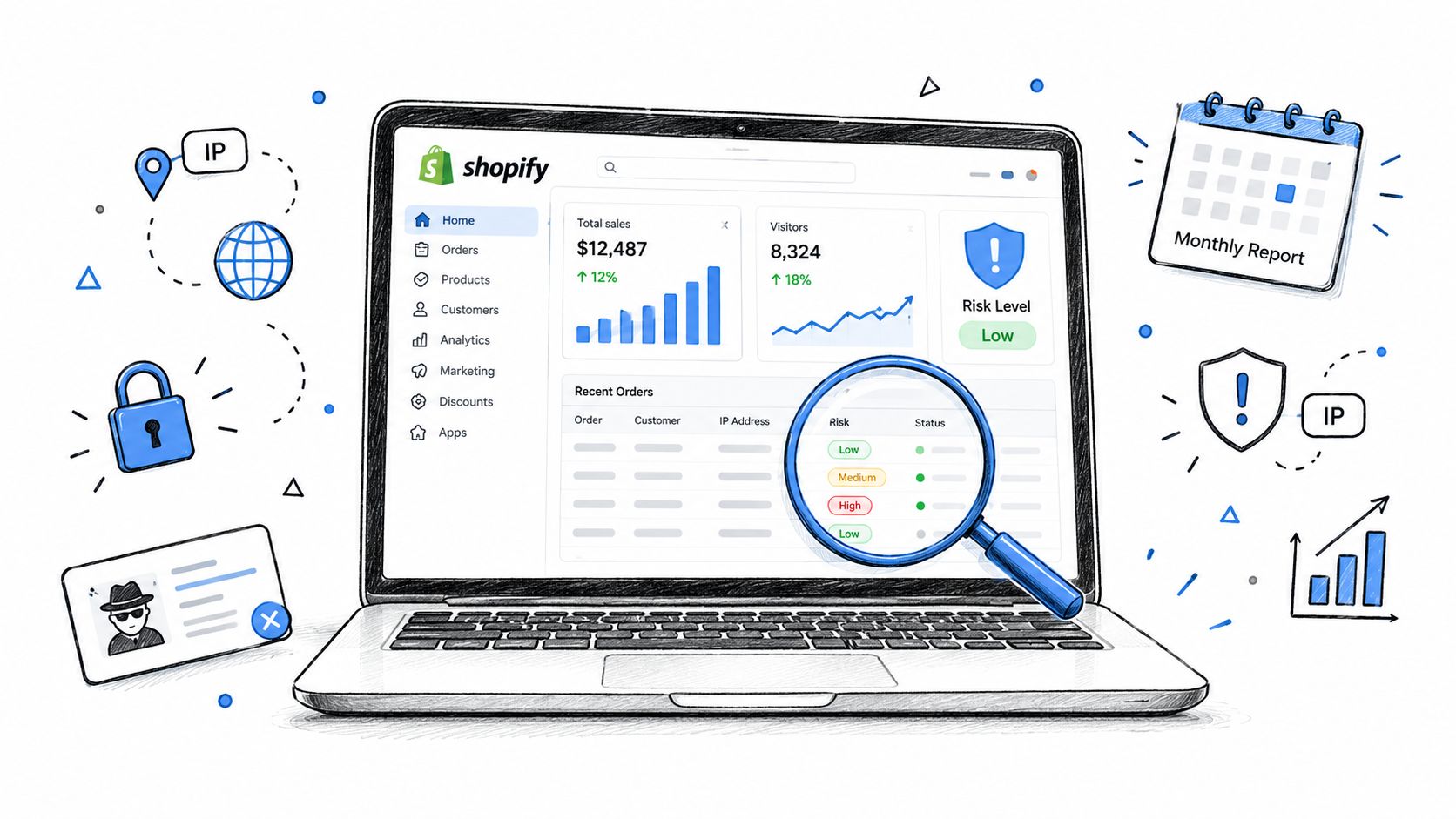
Shopify has no single fraud report. The five places you need are the Orders list, the Orders CSV export, the Fraud Control dashboard, the chargebacks list, and Orders > Abandoned checkouts > Blocked.
You can stitch those views into a monthly report in about 20 minutes, but it won't tell you how many bots, VPN sessions, failed card-testing attempts, or blocked visitors reached the storefront. The report starts with orders, so it measures what reached the payment and fulfillment workflow, not the full fraud pressure around your store.
Table of Contents
- Why a Shopify Fraud Report Does Not Exist
- The Five Places Shopify Keeps Fraud Data
- The Monthly Shopify Fraud Report in Five Metrics
- How to Read a Shopify Fraud Rate Without a Benchmark
- What to Do With a Rising Number
- Where Securify fits
- FAQ on the Shopify Fraud Report
Why a Shopify Fraud Report Does Not Exist
The popular advice is to look for one Shopify fraud dashboard and copy its headline number. That screen doesn't exist. Shopify distributes fraud data across order risk, cancellations, chargebacks, and blocked payments, so a useful Shopify fraud report is a reconciliation exercise.
The closest built-in equivalent is the Fraud Control app. It gives you operational indicators such as acceptance rate, high-risk orders, orders canceled for fraud, fraudulent chargebacks, and Shopify Protect coverage, but Shopify says the dashboard data is delayed by ten days so fulfillment requirements can be met. The per-order Fraud Analysis panel is where Shopify surfaces the order's risk level and signals such as AVS, CVV, IP address details, and unusual purchase patterns. Learn how to read the fraud analysis indicators before deciding whether to fulfill.
Practical rule: Treat the monthly report as five counts and a trend line, not as a single fraud score.
The data sits across Orders, Customers, Analytics, Risk, and Finances, although the five report inputs are specific admin views rather than five identical dashboards. You'll join them by order ID where an order exists, then keep a separate record for blocked checkout activity and pre-order traffic signals.
The Five Places Shopify Keeps Fraud Data
I reconcile the same screens every month because each one answers a different operational question. Orders show what Shopify flagged, the export gives you stable columns, Fraud Control summarizes payment activity, chargebacks show disputes, and blocked checkouts show payment attempts that never became orders.
| Admin path | What to count | Feeds into report |
|---|---|---|
| Orders > Filter by risk level | Medium and High orders, plus flagged order IDs | Risky orders |
| Orders > Export | Risk Level, Canceled at, Financial Status, Fulfillment Status, and fraud tags | Risk and fraud cancellations |
| Apps > Fraud Control | High-risk orders, fraudulent chargebacks, acceptance rate, and orders canceled for fraud | Payment and cancellation checks |
| Payments > Disputes | Chargebacks, inquiries, reason, status, and deadlines | Dispute counts |
| Orders > Abandoned checkouts > Blocked | Shopify Payments blocked checkouts | Pre-order payment attempts |
Orders list filtered by risk level
Open Orders, select Filter, and use the available risk-level filter label in your admin. Shopify's order list marks flagged orders with a warning symbol next to the order number. Count the rows identified as Medium or High, then open a sample of each level and confirm the Fraud Analysis card.
This view is best for the daily queue. It isn't a complete monthly ledger until you export the orders or record the order IDs, because filters can change as the store's date range and admin view change.
Orders CSV export
Use Orders > Export and preserve the original CSV each month. The documented columns include Risk Level, Canceled at, Financial Status, and Fulfillment Status. The export doesn't provide a dedicated cancel-reason column, so add a fraud tag when a cancellation is confirmed as fraud.
Count rows with a cancellation timestamp and that tag. Keep the original export untouched, then work from a copy with a month column and an order ID column. This prevents a later tag edit or status change from changing last month's result.
Fraud Control app dashboard
Open Apps > Fraud Control. The dashboard tracks acceptance rate, high-risk orders, fraudulent chargebacks, orders canceled due to fraud, Shopify Protect, and related coverage indicators. Full dashboard data depends on using Shopify Payments.
Shopify describes the dashboard as something that “provides insight into potential fraud, but doesn't actively protect against it.” Use it as a reconciliation check against your order export, not as proof that every suspicious visitor or failed attempt was stopped. Don't use health bands or a benchmark from this screen in your report.
Chargebacks list
For Shopify Payments, open the chargebacks and inquiries area through Payments > Disputes when that path is available in your admin. Confirm the path in your store because payment views can vary by setup. Record the order, dispute reason, status, date received, and evidence deadline.
Shopify's fraud guidance distinguishes the chargeback rate for fraud from the chargeback amount for fraud. The first is the percentage of total payments that received a chargeback for the reason “Fraudulent,” while the second measures the value of orders charged back for fraud. Keep the reason attached to every row instead of combining all disputes into one unexplained total. Shopify's fraud reports documentation explains that distinction.
Blocked checkouts
Go to Orders > Abandoned checkouts > Blocked. These records represent checkouts where Shopify Payments blocked the payment before an order was created. They can export with orders, but they don't behave like completed orders in your fulfillment or order-risk count.
Record the attempt count and look for repeated email addresses, payment identifiers available in your admin, or IP signals where shown. A cluster of repeated attempts can indicate card testing, but don't convert it into an order-based fraud rate.
The Monthly Shopify Fraud Report in Five Metrics
Use one calendar month and one saved export. A defensible report counts activity first, then calculates the one ratio you need from the same period.
| Metric | Where in admin | How to count | A rising number usually means |
|---|---|---|---|
| Orders flagged Medium or High | Orders risk filter or export Risk Level | Count Medium and High rows, then divide by total orders for a share | More risky traffic is reaching checkout, or a product or campaign changed |
| Orders canceled for fraud | Orders export, Canceled at, plus fraud tag | Count tagged rows canceled during the month | Fraud was caught after authorization, creating review and handling work |
| Chargebacks by reason | Payments > Disputes | Count each reason separately, including fraudulent, unrecognized, product not received, and other | Fraudulent or unrecognized disputes point toward payment abuse, while nonreceipt points toward fulfillment |
| Dispute rate | Chargebacks and Orders | Chargebacks received in the month divided by orders in the month | More processor and card-network exposure, so watch the trend |
| Blocked checkouts | Orders > Abandoned checkouts > Blocked | Count blocked attempts, and note repeats from one email or IP | Shopify stopped more payment attempts, possibly including card-testing activity |
Don't turn these into a composite score. Add product, discount code, and shipping country as slices, then keep a six-month sheet. A product slice can reveal one SKU attracting disproportionate scrutiny. A discount-code slice can expose a promotion that attracts repeated payment attempts. A country slice can show where orders or blocked attempts concentrate.
For dispute rate, Shopify counts every chargeback received, whether you later win or lose it. The calculation is therefore a received-chargeback count divided by the order count for the same month, not a count of lost disputes.
How to Read a Shopify Fraud Rate Without a Benchmark
Shopify doesn't publish one universal target for a merchant's fraud rate. Use the store's own history instead, with matching definitions and date ranges. A small store can see its rate move sharply when one dispute enters a month, so one month shouldn't determine a policy change.
Call the ratio directional. If Medium and High orders rise while chargebacks stay flat, your review process may be catching more risk before shipment, but the team is spending more time on decisions. The real cost of manual fraud review includes queue time and interruption, even when the review prevents a dispute.
If chargebacks rise on Shop Pay orders, check whether those orders meet Shopify Protect requirements and review what Shopify Protect covers. The useful comparison is month over month across the same three-to-six-month window, not your rate against a number copied from another store.
A clean order report can still hide upstream activity:
- Bots: Automated sessions can inflate traffic without creating an order.
- VPN and proxy sessions: Masked visitors may never appear in the order export.
- Card-testing bursts: Failed authorizations can happen before a successful order exists.
- Pre-checkout blockers: A visitor stopped before checkout leaves no ordinary order row.
That's why Shopify fraud problems usually start before checkout. The order report is a downstream control, not a visitor log.
What to Do With a Rising Number
Start with the metric that moved, then change the narrowest part of the workflow.
Medium and High orders rising: Review the order's Fraud Analysis indicators before fulfillment. Check AVS, CVV, IP and country signals, billing and shipping consistency, and the customer's order history. Avoid rejecting every unusual order, because aggressive controls can block legitimate buyers.
Fraud cancellations rising: Automate the handoff, not the judgment. Shopify Flow can support a workflow to fulfill, verify or cancel a high-risk order, including a cancel-and-restock path where that matches your operating policy.
Chargebacks rising: Check the payment descriptor, shipping confirmation, tracking, and dispute evidence process. For eligible orders, confirm Shopify Protect coverage before fulfillment and preserve the order, customer, payment, and delivery records needed for a response.
Blocked checkouts rising: Compare the attempts with traffic source, geography, landing page, and campaign timing. A burst from a single source can look like a successful promotion in top-line sessions, even when it produces no genuine orders.
How to report fraud to Shopify
“Report fraud to Shopify” can mean two different things. Shopify says phishing should be forwarded to phishing@shopify.com. A fraudulent order on your store is handled operationally by canceling, refunding, tagging, and blocking the relevant customer or signals, not by submitting the order as a general fraud report.
For store impersonation or account takeover, use Shopify's security reporting route if you can verify the current form in Help Center. If you can't confirm the form, contact Shopify Support and preserve the relevant URLs, order IDs, and account details.
Where Securify fits
The monthly report starts at the order. Securify adds the missing visitor layer through a visitor log that can show bots, VPN, proxy, Tor, and blocked visitors before they become orders. Its country and IP rules, checkout validation, and pre-checkout controls can reduce the number of risky orders, fraud cancellations, and blocked checkout attempts that reach Shopify's order workflow.
Securify acts before or alongside Fraud Analysis, not as an integration with that panel. Its Growth plan also presents dollar exposure as a running number, which gives an ops team another way to size traffic pressure without treating sessions as orders. Review Securify on the Shopify App Store for the available controls and plan details.
FAQ on the Shopify Fraud Report
Does Shopify have a fraud report?
No. Shopify doesn't ship one aggregate fraud report. Use the Orders risk filter, the Orders export's Risk Level column, the Fraud Control app, the chargebacks list, and Orders > Abandoned checkouts > Blocked, then reconcile the results by month.
How do I see all high-risk orders in Shopify?
Open Orders, apply the available risk-level filter, and select High. You can also export the Orders list and sort the Risk Level column. Flagged orders carry a warning symbol next to the order number, and the order detail view contains the Fraud Analysis panel.
How do I calculate my Shopify chargeback rate?
Divide chargebacks received during the month by orders placed during that same month. Shopify counts every chargeback in the calculation, whether you win or lose the dispute. Keep fraudulent, unrecognized, product-not-received, and other reasons separate so the ratio has context.
Where do I see blocked checkouts in Shopify?
Open Orders > Abandoned checkouts > Blocked. This view lists checkouts that Shopify Payments stopped before an order existed. The records can export with orders, but they shouldn't be combined with completed orders when you calculate an order-based rate.
How do I report fraud to Shopify?
Forward phishing messages to phishing@shopify.com. For a fraudulent order on your own store, cancel and refund it, add a fraud tag, and block the relevant customer or signal. For impersonation or account takeover, verify Shopify's current security report form or contact Shopify Support.