
· Klaviyo · Shopify · email marketing · ecommerce · integration
How to Use Klaviyo in Shopify: Integration & Setup Guide
Learn how to use Klaviyo in Shopify with this step-by-step guide. Covers app installation, data syncing, tracking setup, troubleshooting, and protecting your
If your Shopify store is sending campaigns but the audience data is incomplete, is the problem really your Klaviyo flow, or did the integration fail before the flow ever had a chance to work?
That distinction matters. A connected app can still have delayed historical data, missing events, duplicate opt-ins, or traffic that distorts the customer profiles entering your marketing system. The practical answer to how to use Klaviyo in Shopify starts with the integration layer, not with email design.
Table of Contents
- Why Integrate Klaviyo with Shopify
- Installing the Klaviyo App and Connecting Your Store
- Understanding Data Sync Timing and Behavior
- Configuring Event Tracking and Pixel Setup
- Troubleshooting Common Integration Issues
- Where Securify fits
- Frequently Asked Questions
- Can you use Klaviyo with multiple Shopify stores?
- Why is Shopify data missing in Klaviyo after setup?
- What should you do if events stop firing after a Shopify update?
- Is Klaviyo compatible with Shopify One-page Checkout?
- How can you prevent duplicate opt-in emails during migration?
- How do you know whether the integration is fully active?
Why Integrate Klaviyo with Shopify
Shopify and Klaviyo say more than 117,000 brands use both platforms together, which reflects how common this pairing has become in ecommerce operations. Klaviyo also reports that Shopify merchants saw an average 62% boost in GMV within 12 months of starting with Klaviyo, based on the data presented in its Shopify integration overview. Those figures describe reported ecosystem performance, not a guaranteed outcome for every store.
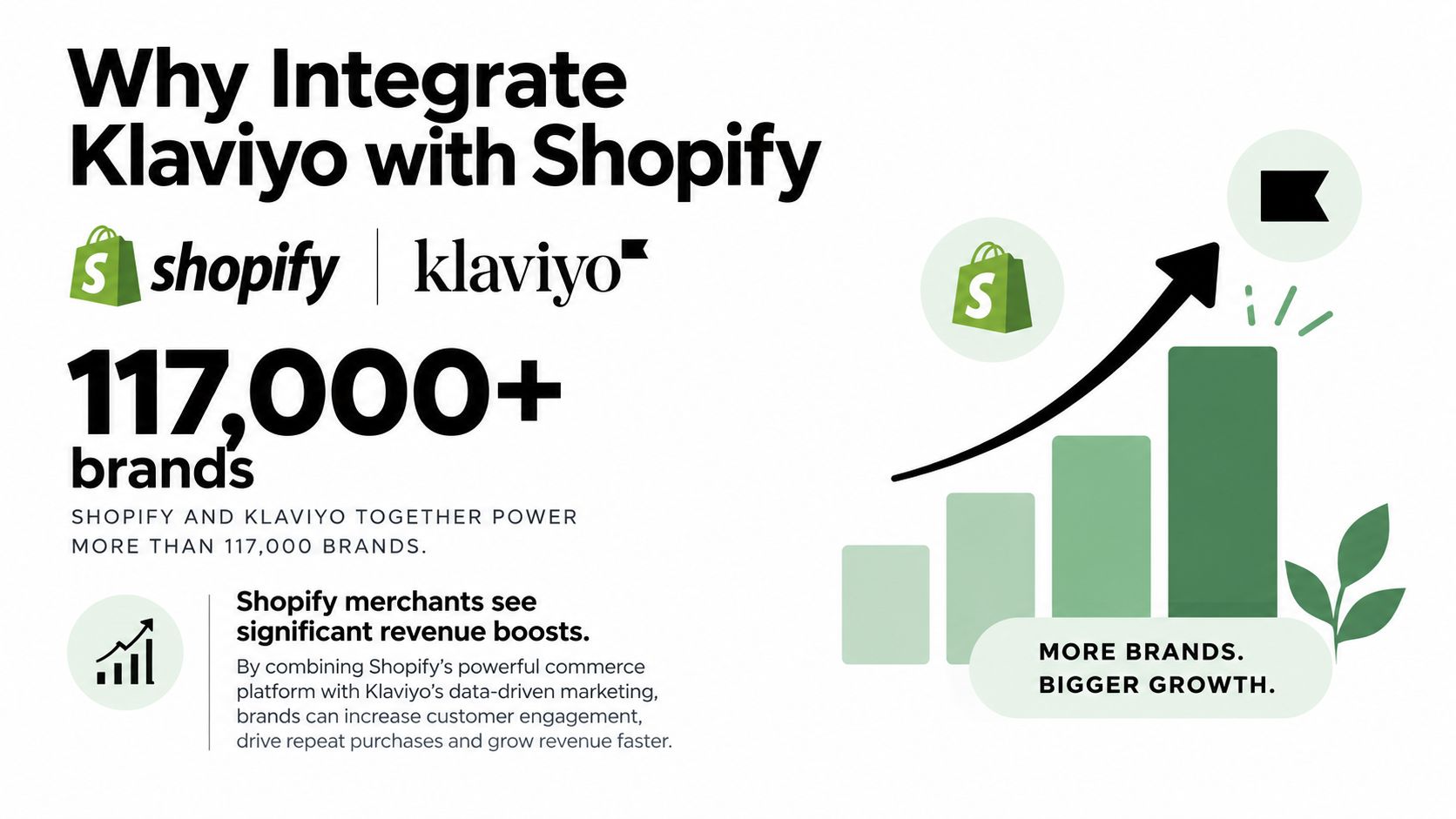
The operational value is more direct. Shopify holds storefront activity, orders, customer records, products, and checkout behavior. Klaviyo turns that information into segments and automated messages. When the connection works, you can target recent buyers, distinguish first-time customers from repeat customers, and build abandoned-cart follow-up around actual store activity rather than a manually uploaded list.
When the connection is incomplete, the symptoms show up downstream:
- Segments miss customers: A buyer may place an order in Shopify but remain absent from the expected Klaviyo audience while the historical sync is still running.
- Flows trigger late or not at all: Missing events can prevent a message from entering an automation.
- Lists become difficult to trust: A legacy email connection can create duplicate subscriptions or repeat opt-in messages.
- Revenue reporting loses context: Campaign results become harder to interpret when customer and order events arrive inconsistently.
The best setup treats Klaviyo as a live customer-data layer, not just an email sender. Before building complex flows, confirm that subscribers, profiles, order events, product information, and onsite behavior are entering the account as expected. For a broader view of how email and SMS channels work together, Quikly's email and SMS guide is a useful reference.
Practical rule: Build automation only after you can explain where each trigger comes from and how Shopify supplies it.
Klaviyo and Shopify also reported a 73% revenue growth figure over three years in IDC-sponsored research, as described in the same Klaviyo and Shopify announcement. Treat that as ecosystem-level research context, not a forecast for your store.
Installing the Klaviyo App and Connecting Your Store
The correct sequence is simple, but skipping one decision during setup can create cleanup work later. Install the Klaviyo app from the Shopify App Store, connect the store URL, choose the data streams you want to sync, and then review old marketing connections before activating campaigns.
Connect the store in the right order
Start inside Klaviyo by opening the integrations area and selecting Shopify. Enter the store URL in the expected format, then continue through Shopify's authorization screen. If the app is already installed, review the requested permissions and update the app when prompted. If it isn't installed, complete the installation from the Shopify App Store before returning to Klaviyo.
Once the connection screen presents the available streams, make deliberate selections rather than accepting every option without review. Klaviyo documents choices for Shopify email subscribers, SMS subscribers, Markets, profile data, events, and onsite behavioral tracking in its Shopify integration setup guidance.
A useful first-pass checklist is:
- Email subscribers: Select the Klaviyo list that should receive Shopify email subscribers.
- SMS subscribers: Choose the correct SMS audience if your store collects text-message consent.
- Markets: Enable the market data your segmentation and localization logic needs.
- Profiles and events: Sync the customer and order activity required for flows.
- Onsite tracking: Confirm that browsing and storefront behavior are included where appropriate.
Remove competing send paths before launch
Klaviyo recommends disabling legacy ESP connections and Shopify's own abandoned checkout emails when Klaviyo is taking over those functions. Leaving both systems active can produce duplicate messages, duplicate opt-in requests, or confusing list growth.
That cleanup is especially important during a migration. Existing subscribers shouldn't receive a new opt-in request merely because another connected system is still pushing the same records into Shopify or Klaviyo. Before activating a flow, identify every tool that can send an abandoned-checkout or subscription message and decide which platform owns that job.
For merchants adding SMS to the same operating model, this practical SMS marketing setup from YipSMS Inc. provides additional implementation context. For the integration-specific connection points and supported workflow, review the Klaviyo Shopify integration details.
Understanding Data Sync Timing and Behavior
A newly connected store doesn't become fully historical in one instant. Klaviyo says the initial connection syncs the last 90 days of Shopify data immediately, then continues with a complete historical sync that can take from a few minutes to several days, depending on order, customer, and product volume. These timing details are documented in Klaviyo's Shopify data sync help article.
That creates two different operating states. The first is a fast recent-data load, which gives you a usable view of current activity. The second is the longer historical process, which fills in older profiles, orders, and product records. A segment built during that second phase may change as more records arrive.
Don't interpret every early gap as a broken connection. A new buyer might appear quickly while an older order history remains unavailable until the full sync catches up. Flow testing can also produce misleading results if you test against an event that hasn't been imported yet.
What to verify during the initial load
Use a small set of known records instead of relying only on aggregate counts:
- Recent customer profile: Confirm that a recent buyer exists in Klaviyo with the expected email and profile details.
- Order activity: Check whether the purchase event includes the relevant product and order information.
- Subscriber status: Verify that consent status matches what the customer selected in Shopify.
- Segment membership: Test a simple audience based on a recent purchase or subscriber property.
- Flow trigger: Use a controlled test event and confirm whether Klaviyo receives it.
Once the initial load is complete, Klaviyo says new data syncs in real time. That behavior supports lifecycle automation, segmentation, and abandoned-cart follow-up, but real-time syncing doesn't correct a wrong configuration. If a stream wasn't selected, or if an old connection is still sending data, fast syncing can spread the problem faster.
Bot and automated sessions can also make storefront behavior look more active than the customer base really is. Shopify classifies online-store sessions as human or bot and lets merchants filter reports by the “Human or bot session” dimension. Use that distinction when investigating unusual traffic or inflated behavioral audiences, and compare it with the guidance in this Shopify bot traffic analytics guide.
Configuring Event Tracking and Pixel Setup
Event tracking is the layer that determines whether Klaviyo knows what a visitor or customer did. A profile without the right event history may still exist, but it won't qualify for the segment or flow that depends on that behavior.
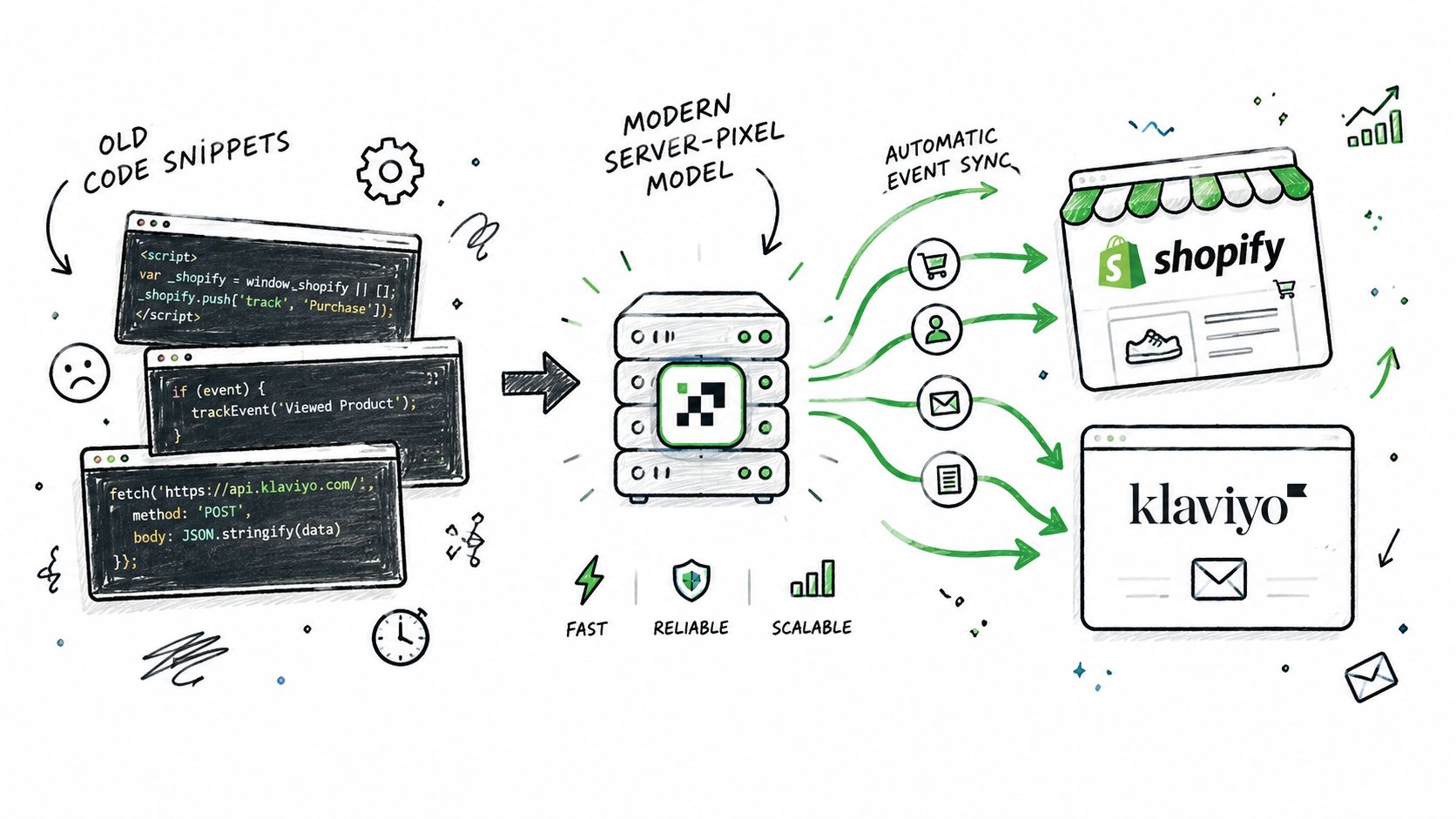
Klaviyo has moved from an older code-snippet-based Added to Cart event to an automatically tracked version that syncs through a Shopify Server Pixel, according to its Shopify integration documentation. This change reduces the need to maintain the older manual event implementation, but merchants migrating from a customized setup still need to verify that the expected events arrive only once and with usable properties.
Audit the events your flows depend on
Start with the trigger, not the message. If a browse-abandonment flow depends on a product-view event, confirm that the event appears on a test profile and includes enough product information for the message to render correctly. For an abandoned-cart flow, test the customer journey from product selection through checkout behavior and inspect the resulting event timeline.
Check for these failure patterns:
- No event: The pixel or integration isn't receiving the action.
- Delayed event: The store is still processing synchronization or the tracking transition hasn't completed.
- Duplicate event: Older custom tracking remains active alongside the newer event path.
- Incomplete properties: The event arrives, but product, cart, or customer fields are missing.
- Wrong profile: The activity is associated with an anonymous or alternate profile instead of the intended subscriber.
Shopify's one-page checkout is compatible with Klaviyo's Shopify integration, so standard checkout tracking shouldn't require a separate workaround. If events stop after a theme, checkout, or app change, compare the event timeline before and after the change rather than rebuilding every flow.
For stores using Shopify Flow to send custom events into Klaviyo, validate the customer and event properties as JSON. Invalid formatting can stop the event from passing into Klaviyo even when the workflow itself appears to run.
Troubleshooting Common Integration Issues
Most integration failures fall into three categories: the store never connected correctly, data is still syncing, or an older connection is creating side effects. Separating those categories prevents an operator from repeatedly reinstalling the app when the issue is a duplicate sender or an incomplete reauthorization.
| Issue | Likely cause | Quick fix |
|---|---|---|
| Store won't connect | Incorrect store URL formatting or a frozen Shopify store | Check the URL format, confirm the store is accessible, then restart the connection |
| Integration turns off | The reauthorization flow was abandoned before completion | Reopen the integration and complete the full authorization sequence |
| Recent records appear, but older data is missing | Historical sync is still running | Allow the full sync to finish, then retest the segment or flow |
| Existing subscribers receive duplicate opt-in messages | A prior Shopify-connected ESP is still active | Disconnect the legacy connection before resending or importing subscribers |
| Events stop after a tracking change | Old custom tracking conflicts with the newer server-pixel path | Inspect the event timeline and remove redundant tracking logic |
| Several Shopify stores need one Klaviyo account | Klaviyo doesn't support more than one Shopify store per account | Plan separate account or data ownership arrangements before connecting stores |
Connection problems versus sync problems
An incorrect store URL or frozen Shopify store blocks the connection at the beginning. Leaving the reauthentication process early can also disable the integration, even if it appeared active before the authorization attempt. Those problems require a connection check, not a segment rebuild.
A sync delay looks different. Recent Shopify data may appear while older customers or products are still absent. In that case, compare the timing of the missing record with the initial load and inspect whether the full historical process has completed.
Migration errors need a separate response. Klaviyo warns that failing to disconnect a prior Shopify-connected ESP can trigger duplicate opt-in emails to existing subscribers. Before importing or resubscribing anyone, list every connected sender, disable the old path, and review the affected audience for duplicate records.
Migration check: Never solve a duplicate-send problem by adding another list. Find the connection that is sending twice.
Where Securify fits
Traffic quality affects the data that reaches marketing systems. Securify is a Shopify app that can classify and filter bad bots, suspicious sessions, VPN and proxy activity, and other non-genuine traffic before those visits distort storefront reporting or feed unwanted activity into connected tools.
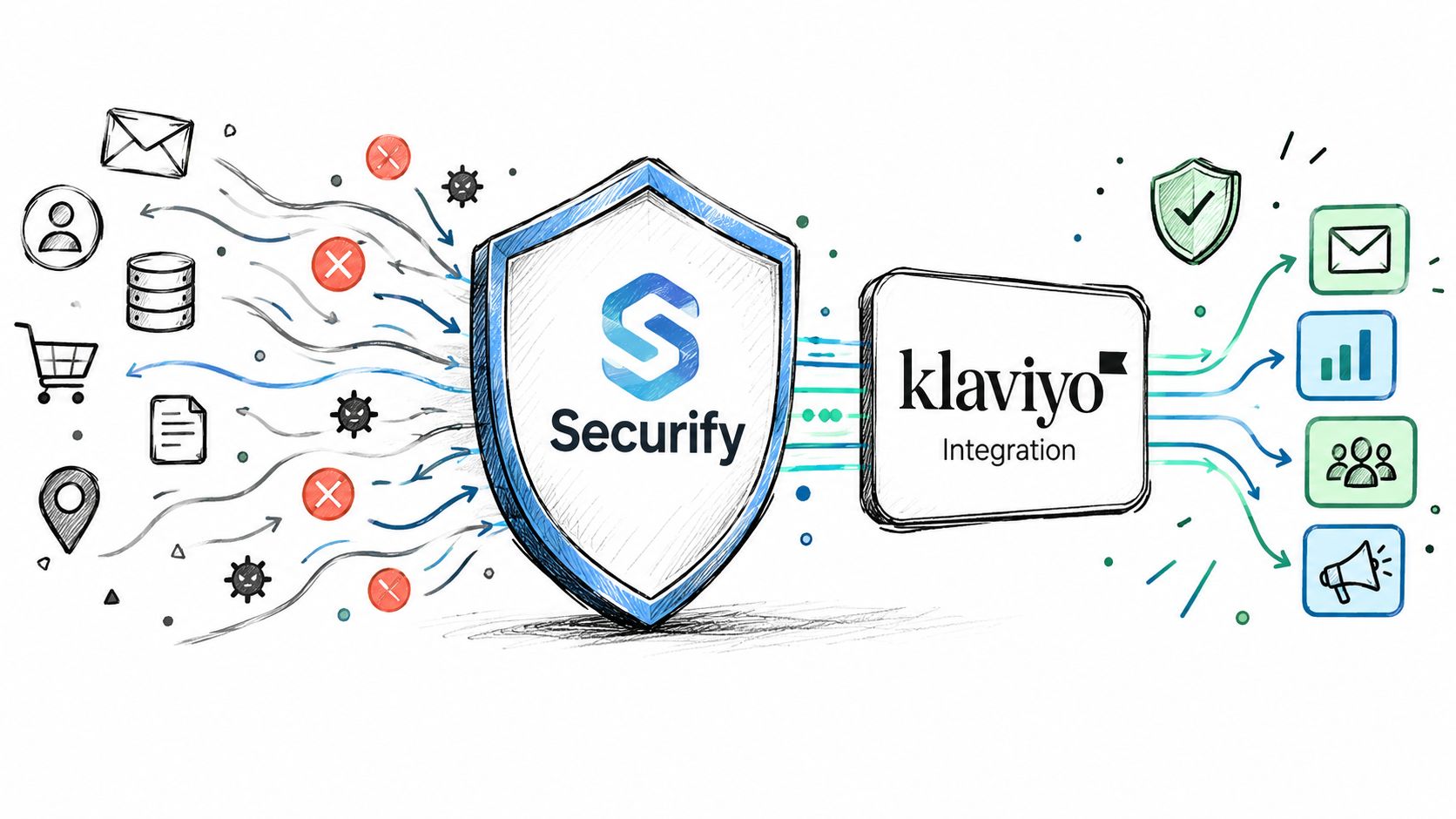
Use it as an upstream traffic-control layer, not as a replacement for Klaviyo's segmentation or automation. Its listed controls include bot blocking, VPN and proxy detection, geo-blocking, price protection, and a Store X-Ray scan that evaluates recent traffic quality in about 30 seconds with no signup required. Review the Shopify integration workflow to see how the store-level protection layer fits alongside connected systems.
Merchants can also review Securify on the Shopify App Store when they want to assess traffic quality before it pollutes analytics, subscriber records, support queues, or review activity.
Frequently Asked Questions
Can you use Klaviyo with multiple Shopify stores?
Klaviyo's documented limitation is that one account doesn't support more than one Shopify store. If your business operates multiple storefronts, decide how each store's profiles, events, consent records, and sending activity should be separated before connecting anything.
Why is Shopify data missing in Klaviyo after setup?
Check whether the missing record falls outside the immediate recent-data window and whether the complete historical sync has finished. Klaviyo first syncs the last 90 days, then continues the broader historical process, which can take from a few minutes to several days depending on store volume.
What should you do if events stop firing after a Shopify update?
Test a known customer journey and inspect the profile timeline for the expected event. Pay particular attention to Added to Cart activity if the store previously used custom code, because Klaviyo now documents automatic tracking through a Shopify Server Pixel. Remove redundant tracking only after confirming which event path is active.
Is Klaviyo compatible with Shopify One-page Checkout?
Yes. Klaviyo documents its Shopify integration as fully compatible with Shopify One-page Checkout. If checkout-related events are missing, investigate the integration status, event properties, consent settings, and any custom tracking changes rather than assuming the checkout format itself is unsupported.
How can you prevent duplicate opt-in emails during migration?
Disconnect the prior Shopify-connected ESP before enabling the new subscriber sync. Then review the destination list, consent status, and active flows before sending anything. A legacy connection can continue passing subscribers or triggering opt-in messages even after the new integration appears connected.
How do you know whether the integration is fully active?
Verify a recent customer profile, a recent order event, subscriber consent, a product or cart event, and a controlled flow trigger. A green connection status alone doesn't prove that every selected data stream, event property, and historical record is available.
Securify can help Shopify teams screen bot traffic, suspicious sessions, VPN or proxy activity, and other non-genuine visits before they distort Klaviyo audiences and storefront reporting. Visit Securify to review the traffic-quality controls that can sit alongside your Shopify and Klaviyo setup.